

Appearance
Payment Settings
BridalOp uses a BYOG (Bring Your Own Gateway) model — you're never locked into a single payment processor. Connect Stripe or Square and choose which one handles your in-store card payments.
Go to Settings > Payments to manage your gateways.
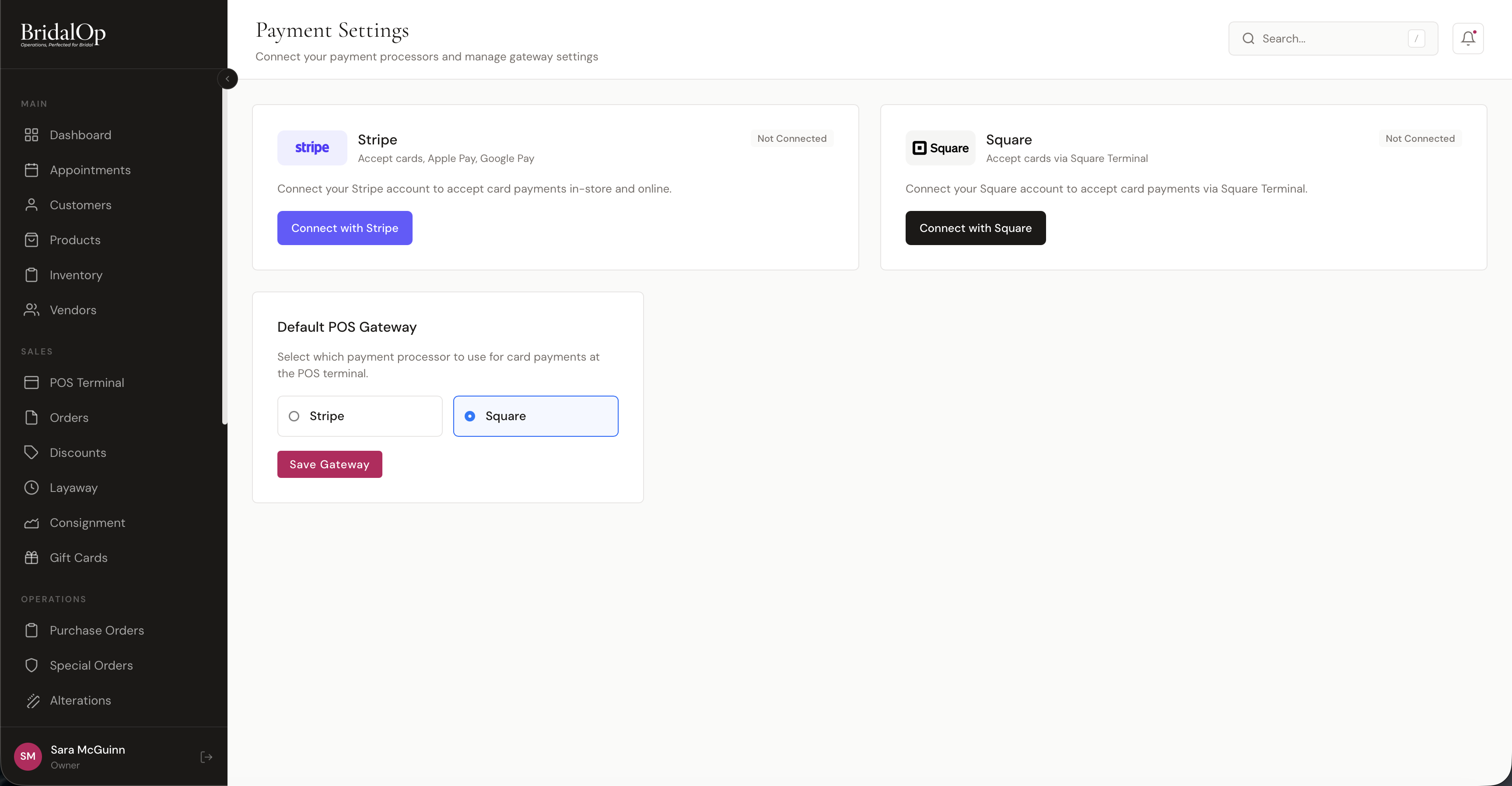
Supported Gateways
Stripe
- Accept cards, Apple Pay, and Google Pay
- Used for in-store payments (Stripe Terminal) and online payments (deposits, gift card purchases)
- Click Connect with Stripe to link your Stripe account via Stripe Connect
Stripe powers:
- POS card payments (via Stripe Terminal reader)
- Online appointment deposits
- Online gift card purchases
- Saved card charges (layaway auto-payments)
Square
- Accept cards via Square Terminal
- Click Connect with Square to link your Square account
After connecting Square, you must select your Square Location from the dropdown that appears. Square requires a location to be set before terminal payments will work. If you skip this step, card payments at the POS will fail.
Square powers:
- POS card payments (via Square Terminal reader)
- Online gift card purchases
- Saved card charges
Default POS Gateway
Once you've connected your gateway, you need to select it as the default for card payments at the POS terminal.
Select either Stripe or Square and click Save Gateway.
Important
Connecting a gateway doesn't automatically make it your POS default. After connecting, make sure you also select it as your Default POS Gateway and click Save Gateway — otherwise your POS card payments may fail.
Other Payment Methods
Regardless of which gateway you choose, the POS also supports:
- Cash — manual cash payments
- Gift Cards — redeem BridalOp gift card balances
- Saved Cards — charge a customer's card on file
These methods don't require a gateway connection.
Card Readers
After connecting a gateway, pair a physical card reader so customers can tap, dip, or swipe at the counter. BridalOp supports Stripe Terminal devices (BBPOS WisePOS E, Stripe Reader S700 / S710) and Square devices (Square Terminal only). See Card Readers for the full pairing flow, charging from POS or invoices, tipping, and troubleshooting.
Tipping
Two independent toggles control where BridalOp asks for a tip. Either or both can be on at the same time — they cover different points in the customer journey.
Tip Prompts on Readers
When on, a card reader asks the customer to add a tip on the device's screen before the in-store sale finalizes. Applies to POS card-on-reader charges only.
Tip Prompts on Invoice Payment Pages
When on, customers paying an invoice through the public payment link see a tip selector with 1%, 3%, 5%, Custom, and No Tip options. The tip is added to the same charge as the invoice amount in a single capture.
Tips are credited to the invoice's Sold By consultant, so they flow into the same reporting as in-store reader tips. The prompt is hidden if Sold By is empty — there's no one to credit, so BridalOp doesn't ask. Set Sold By on the invoice (or carry it over from the source order) before sending if you want the prompt to appear.
Reporting
All collected tips — reader-based and invoice-based — appear in the Tips report under Reports.