

Appearance
Ask Bri
Bri is BridalOp's AI assistant — a conversational chatbot available from every page in the app. Ask Bri about your store data, get help navigating features, look things up without leaving what you're working on, and ask for a short list of changes to be made for you.
Opening Bri
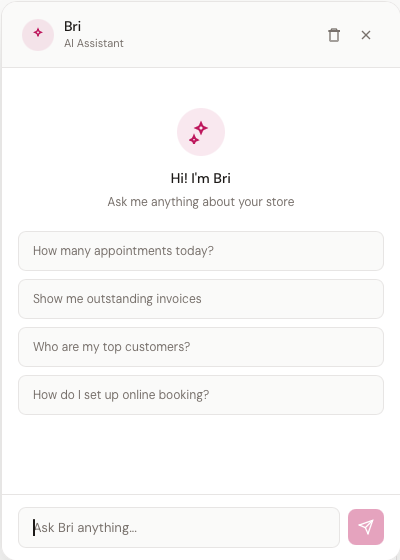
Click the Ask Bri button in the bottom-right corner of any page. A chat panel opens with suggested questions to get started.
What You Can Ask
Bri handles three kinds of request:
Store Data Questions
Ask about anything in your boutique:
- "How many appointments today?"
- "Show me outstanding invoices"
- "Who are my top customers?"
- "What's the balance on order ORD-20260408-0001?"
- "How much revenue did we make this week?"
- "Which products are low on stock?"
Bri can read your customers, appointments, orders, invoices, inventory, products, product add-ons, special orders, purchase orders, contracts, gift cards, alterations, layaway plans, customer files, and commission data — all scoped to your store. Bri also knows about your booking configuration including per-location links, day-of-week restrictions, deposit labels, and customer field conditions.
Bri is also up to speed on the latest tenant-facing features:
- Customer Forms — sending forms, status pills, and the Style Preferences composite field
- Per-staff Sales Goals — store / location / staff scopes and the personal Dashboard ring
- Internal Documents on customer Files tabs and the
customer-files.internalpermission - The Product Type rename (formerly "Class")
- Vendor Color Groups, Size Charts, and the new Pricing Rules cascade from vendor → product
- Appointment Checklist Templates managed under Settings > Booking
- Quotes — pre-sale estimates, the public Accept / Decline page, and the Convert to Order / Convert to Invoice flows
Bri intentionally doesn't know about admin-only features (e.g., database backups) — Bri is a tenant-facing assistant only.
Things Bri Can Do For You
Bri can make a small, specific set of changes. Ask in plain words:
| Ask | What happens |
|---|---|
| "Schedule Brittany Ward Tuesday from 9 to 3" | Adds the shift to the schedule and publishes it |
| "Block Tuesday the 15th from 4pm to 6pm" | Closes that time so it can't be booked |
| "Note on Sarah's file that she's allergic to tulle" | Adds a note to her customer record |
| "Add a new customer, Jane Doe, 555-1234" | Creates the customer. Nobody is emailed |
| "Set up 20% off called Spring Sale" | Creates the discount, switched off |
| "Draft an invoice for Sarah, $450 for alterations" | Creates a draft. It is never sent |
Bri always asks first
Bri tells you exactly what she's about to do and waits for you to say yes:
Ready to schedule: Brittany Ward — Tuesday, September 15, 2026, 9:00 AM to 3:00 PM (6 hours). Shall I go ahead?
Read it before you agree — particularly the date. "Tuesday" is two different dates, and this is where you catch the wrong one.
Where Bri stops
- Discounts are created switched off. Turn one on under Discounts when you're ready for people to use it. "20 percent off" and "20 dollars off" sound alike out loud, so Bri reads the amount back before creating it — and even if that's missed, nobody can use it until you arm it
- Invoices are drafts. Bri never sends one. You open it, check it, and send it yourself
- Two people with the same name stops her. Ask for "Brittany" when you have two and Bri asks which, rather than guessing
- A likely duplicate customer stops her. She'll tell you who already looks like that
- She can't do what you can't do. Bri works with your own permissions — if you can't edit the schedule in BridalOp, asking Bri won't change that
What Bri will never do
Take a payment, issue a refund, cancel or reschedule on a customer, email or text anyone, delete anything, or change your settings and permissions. Those stay yours.
Platform Guidance
Ask how to do things in BridalOp:
- "How do I set up online booking?"
- "Where do I change my business hours?"
- "How do I create a layaway plan?"
Bri responds with step-by-step instructions and links to the relevant pages in your dashboard.
Chat Interface
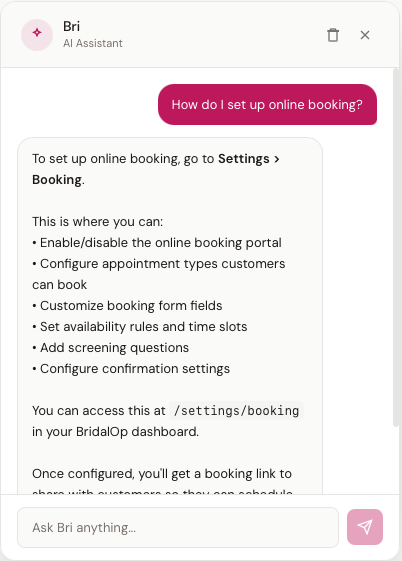
- Your messages appear on the right in rose-colored bubbles
- Bri's responses appear on the left with formatted text — bold labels, bullet points, clickable links, and currency/date formatting
- Suggested questions appear when the chat is empty — click any to submit instantly. The first one, "What can you do for me?", is the quickest way to see what Bri can change for you
- Type a question in the input field and press Enter or click the send button
- Clear conversation using the trash icon in the header to start fresh
Bri maintains your conversation history during your session, so you can ask follow-up questions. The history clears when you close your browser.
Where Bri Appears
The Ask Bri button is available on most pages in BridalOp — the dashboard, appointments, customers, orders, settings, and more. You don't need to navigate to a specific page to use it. (Bri is not available on the POS Terminal screen.)
Bri vs. Reports AI
BridalOp has two AI features:
| Feature | Ask Bri (Chat Widget) | Reports Ask Bri |
|---|---|---|
| Where | Floating button on most pages | Button on Reports pages only |
| Opens as | Chat panel (bottom-right) | Side panel (right) |
| Best for | Quick lookups, how-to questions, conversational queries | Deep analytics, revenue trends, performance metrics |
| Conversation | Multi-turn chat with history | Multi-turn chat with history |
| Can answer | Data queries + platform guidance | Data-focused analytics queries |
Reports Ask Bri is read-only. The chat widget can also make the changes described above. Both are scoped to your store's data.
Data Privacy
- Bri can read your data, and can make the short list of changes described above — nothing else
- Bri never moves money, never contacts a customer, and never deletes anything
- Every change Bri makes is recorded in your Activity Feed against the person who asked for it
- All queries are scoped to your store only
- Internal IDs and system fields are never exposed