

Appearance
Staff Scheduling
Staff → Schedule. Who's working, and when — and, if you want it, booking that knows how many people are actually in.
Requires the Staff Scheduling module, which is on by default. Managing the schedule needs the schedule.manage permission (owners and managers have it). Everyone can see their own week.
Start with a usual week
Most people work the same days most weeks, so that's where you start.
Staff → pick someone → Edit. Beside their details you'll find Usual week: seven days, each one off or on, with its own hours and unpaid break.
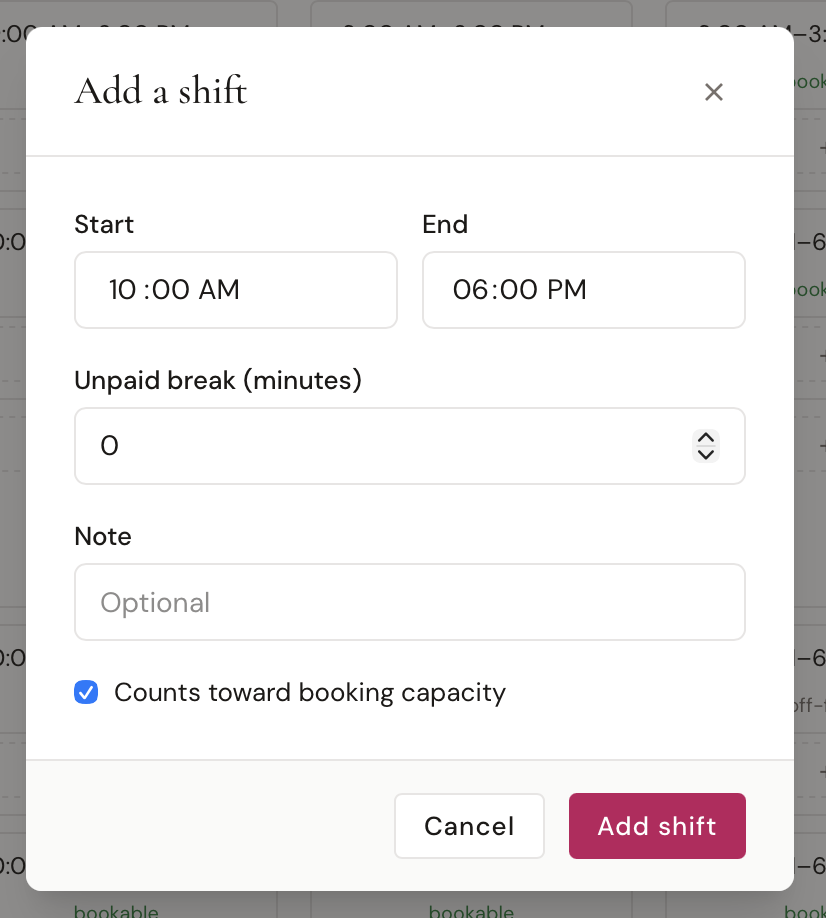
| A day can hold more than one shift | Use + Add shift twice for a split — 10:00 AM–1:00 PM and 3:00 PM–5:00 PM |
| Counts toward booking capacity | Leave this on for anyone working the floor. Turn it off for hours that aren't — alterations, admin, a delivery run |
A second shift on a day starts where the first one ended, so you're usually just changing the end time.
This is a pattern, not the schedule
Saving a usual week doesn't put anyone on the calendar. It's the template that Build from patterns uses.
Build the schedule out
On Staff → Schedule, press Build from patterns, pick a date range, and every usual week becomes real shifts.
Two things worth knowing:
- It only ever adds what's missing. Anything already there is left exactly as it is, so it's safe to run again
- It won't undo your edits. Move somebody's Monday to a late and rebuild, and you keep the late — you don't get a second Monday shift back at the original time
Build a month at a time if you like. A year is the limit.
Edit the week directly
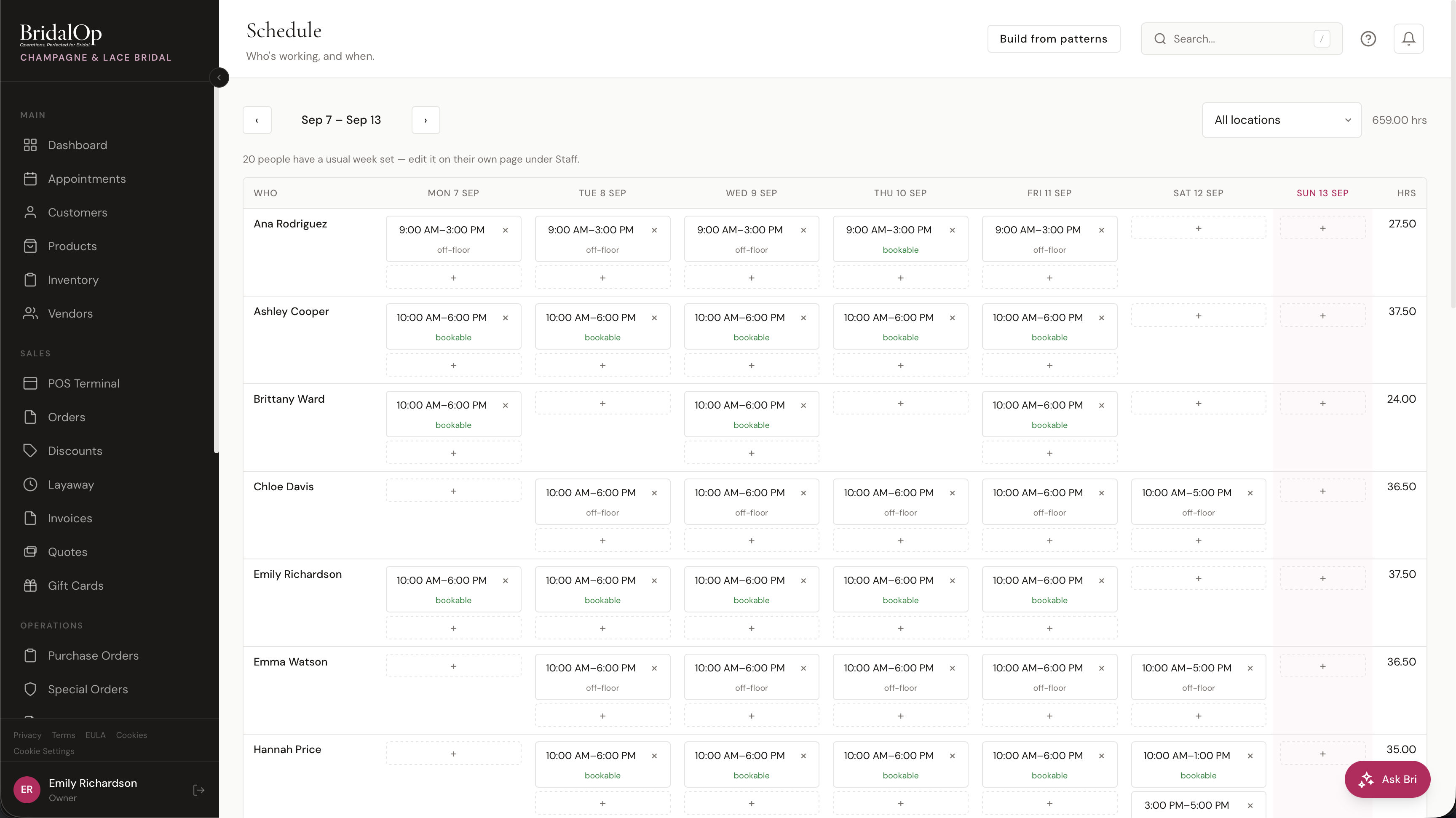
The grid is everyone down the side and seven days across, with hours per person and a total for the week.
- + on any day adds a shift
- × on a shift removes it
- bookable / off-floor under a shift toggles whether those hours count toward booking capacity
Use the arrows to step between weeks, and the location dropdown to narrow a multi-store schedule to one shop.
Publishing
New shifts start as drafts. The team can't see them, and they don't affect booking. A banner tells you how many are waiting, and Publish puts that week in front of everyone.
This is deliberate — you can move a half-built week around all afternoon without anyone watching it change, and without it quietly closing booking slots while you work.
What your team sees
My Schedule in the sidebar shows each person their own published week and their hours. Today is highlighted. They see their own and nobody else's, and it needs no special permission.
Booking that counts people, not rooms
By default, how many appointments can run at once is decided by your fitting rooms. Three rooms means three at a time, whether five people are in or two.
Once you have a schedule up, we can switch that over so capacity is the smaller of your rooms and the people actually on the floor — three rooms and two people means two appointments.
This is off until you ask for it
Nothing about your booking changes until it's switched on for your store, and it's ignored on any day with no published schedule. "Nobody scheduled" means the schedule has no opinion, never nobody is in — so one forgotten week can't close your calendar.
Contact support to turn it on.
Only shifts marked bookable count. A tailor in the back and a receptionist on the desk are both on the schedule and neither makes a fitting slot bookable.
Things worth knowing
Times are your store's, always. A shift is "Tuesday, ten till six" in your own day — no timezone maths, nothing shifting by four hours.
Deleting a usual week leaves the schedule alone. Shifts already built and published stay. Changing somebody's pattern is a decision about the future.
Removing a shift doesn't ask twice. It's one click to put back, so there's no confirmation box in the way.
See also
- Staff — profiles, roles and permissions
- Appointments — fitting rooms, buffers and booking rules
- Time Clock — hours actually worked, which is a different question