

Appearance
Dashboard
The Dashboard is your command center — the first thing you see when you log into BridalOp. It gives you a real-time snapshot of your boutique's day: appointments, revenue, upcoming payments, recent activity, and quick shortcuts to the things you do most.
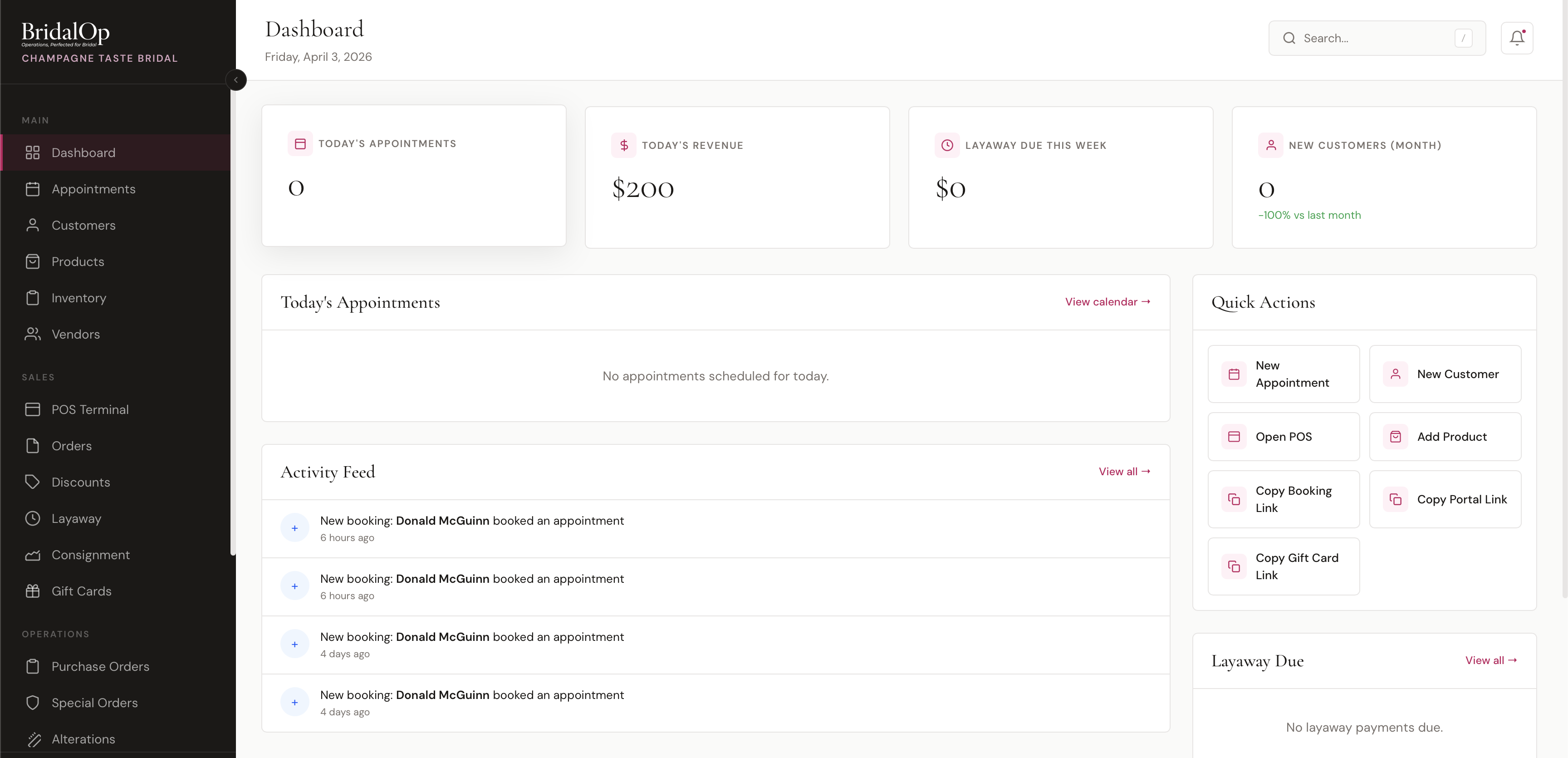
Stat Cards
Four key metrics are displayed across the top of the dashboard:
| Card | What It Shows |
|---|---|
| Today's Appointments | Number of non-cancelled appointments scheduled for today |
| Taken Today | Every payment that came in today, net of sales tax — including deposits and instalments on sales that aren't finished yet |
| Layaway Due This Week | Total installment amounts due this week (highlights overdue count in red if any) |
| New Customers (Month) | Customers added this calendar month, with percentage change vs. last month |
These stats are calculated when the page loads based on your boutique's local timezone.
Taken Today vs Sold This Month
These two numbers measure different things and will legitimately disagree.
- Taken Today counts money as it arrives. A deposit on a gown that hasn't been collected, or a layaway instalment, is in it.
- Sold This Month — on the sales goal card — counts sales that have actually finished, after discounts and net of tax. A deposit on an open order isn't in it, because the sale hasn't happened yet.
For a shop running layaway the gap can be large, and that's the shape of the business rather than a fault. Sold This Month matches Reports → Sales Summary exactly.
Today's Appointments
A scrollable list of all appointments scheduled for today, ordered by start time. Each entry shows:
- Time — formatted in 12-hour format (e.g., 2:30 PM)
- Customer name with a color-coded status dot
- Appointment type and party size
- Assigned consultant
Status indicators:
- Green — Confirmed
- Orange — Pending
- Blue — Arrived
- Rose — In Progress
Click any appointment to jump to its detail view. Use the View calendar link in the header to open the full appointments calendar.
Needs Confirmation
Lists upcoming appointments (within the next 48 hours) that are still tentative, so staff know who to call. Each row shows the customer name, phone number, appointment type, and time.
Only genuinely-tentative bookings appear: an appointment drops off this list as soon as it's marked confirmed (or arrived/in-progress) or once the client self-confirms via their manage link. Already-confirmed appointments are no longer flagged here.
Awaiting Completion
A reconciliation widget listing appointments whose date has passed but that were never closed out — still sitting in pending, confirmed, arrived, or in-progress on a prior day. A count badge next to the heading shows how many need attention (bounded to the last 45 days so the list stays actionable).
Each row shows the customer name, appointment type, current status, and date. Working through this list keeps your records tidy and, importantly, keeps the Close Ratio report accurate — appointments left un-closed would otherwise undercount it. Click a row to open the appointment and mark it Completed or No-Show.
Activity Feed
A timeline of the most recent activity across your boutique (up to 8 items), including:
- Sales — shows staff member name, order number, and amount (e.g., "Sarah completed sale #ORD-20260403-0012 for $1,250.00")
- Online Bookings — shows when a customer books through your public booking portal (e.g., "New booking: Jane Smith booked an appointment")
Each entry includes a relative timestamp (e.g., "2 hours ago", "4 days ago").
Quick Actions
A grid of shortcut buttons for the tasks you perform most often:
| Action | What It Does |
|---|---|
| New Appointment | Opens the appointment creation form |
| New Customer | Opens the customer creation form |
| Open POS | Launches the point-of-sale terminal |
| Add Product | Opens the product creation form |
| Copy Booking Link | Copies your public booking portal URL to clipboard |
| Copy Portal Link | Copies your customer portal URL to clipboard |
| Copy Gift Card Link | Copies your gift card purchase page URL to clipboard |
The copy buttons briefly change to green with a "Copied!" confirmation when clicked.
Layaway Due
Lists active layaway plans with payments due this week or overdue (up to 10 items). Each entry shows:
- Customer name and order number
- Installment amount due
- Due date — shown in orange for upcoming, red for overdue
Overdue payments are sorted to the top. Click any entry to view the full layaway plan details.
Needs Chasing
Orders nobody is looking at. Owners and managers only — a consultant seeing an unplaced order can do nothing about it.
Three things:
| What it means | |
|---|---|
| Ordered by a customer, not yet placed with the vendor | A special order still Pending with no order date on it. A dress promised to a bride that was never actually ordered. |
| Sent to the vendor, never confirmed | A purchase order still Submitted with nothing back. Sometimes that just means the vendor doesn't use the acknowledgement step — worth knowing, because then nothing proves they received it. |
| Confirmed, but with no expected date | Nothing to plan a fitting around, or to tell a bride. |
The card isn't there when there's nothing on it. No empty state, no "0 items" — a panel you scroll past every day because it's usually blank is one you'll scroll past on the day it isn't.
Nothing new is required from your team. It's all worked out from what they already fill in, so it covers orders taken months ago as well as new ones. The waiting periods are yours to set — see Products & Inventory.
Prom Season
Appears when the Prom module is on. Dresses sold, schools covered, and overrides for the current season — plus holds running out this week, which is the part that earns its place. A hold that lapses quietly is a girl who was ready to buy and heard nothing back.
Low Stock Alerts
Displays products with critically low inventory — 2 or fewer available items. Each entry shows:
- Product name and SKU
- Remaining stock count in red
Click any product to go directly to its inventory page. If all stock levels are healthy, this section shows "All stock levels healthy."
Sales Goal Ring
When a sales goal is set for the current month, a progress ring appears on the dashboard. What you see depends on your role:
- Owner + Manager see the store / location ring — the combined or per-location goal configured under Settings > Sales Goals.
- Everyone else sees a personal Your [Month] Goal ring. Revenue is attributed via the
sold_byfield on each order line (matching commissions), and the widget hides entirely if no personal goal is set for the current month.
See Sales Goals → Who Sees Which Ring for full detail.
Sales Dashboard Quick Link
A pinned card on the home Dashboard links straight to the Sales Dashboard — the executive landing page with seven KPI tiles (Revenue This Month / Quarter / YTD with deltas, Appointments Booked, Close Ratio for Bridal Gowns with sparkline, Gross Margin by Department, and Highest Margin Categories). Use it as your morning check-in: glance at the row, click whichever number deserves a deeper look.
SMS Credit Warning
If your SMS credit balance drops below 50, a warning banner appears at the top of the dashboard with a direct link to purchase more credits. This helps ensure your automated appointment reminders and notifications keep sending without interruption.