

Appearance
Bulk SMS
Send text messages to a targeted group of customers directly from BridalOp. Bulk SMS uses a credit-based system — each message costs 1 credit, and you can purchase credit bundles from Settings > SMS Credits.
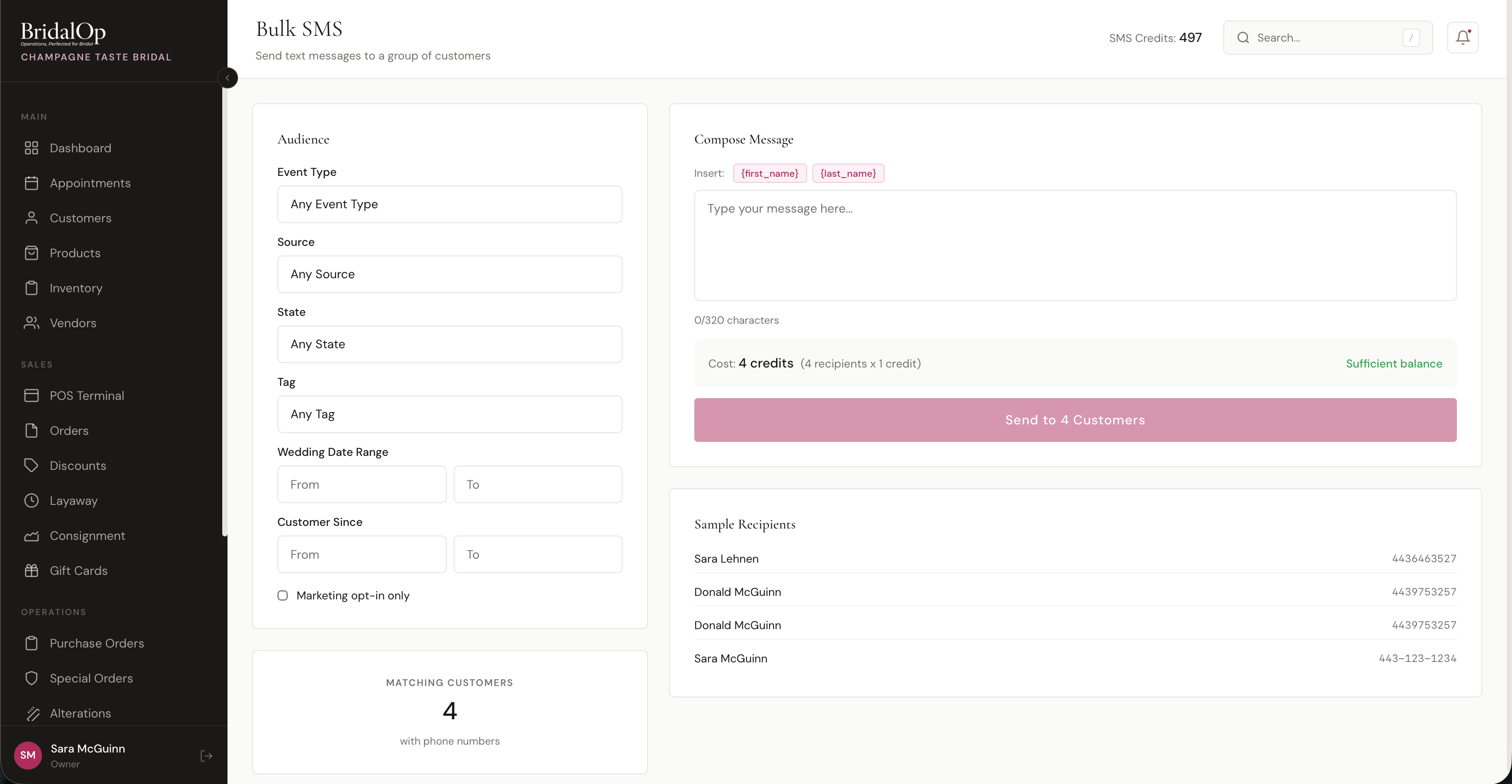
Your current credit balance is always visible in the top-right corner of the Bulk SMS page.
Audience Filters
Use the filters on the left to narrow down which customers will receive your message. All filters combine — only customers matching every selected filter are included.
| Filter | Description |
|---|---|
| Event Type | Wedding, Prom, Quinceanera, Mother of Bride, Bridesmaid, or Other |
| Source | Walk-in, Referral, Social Media, Google, or Other |
| State | Filter by the customer's state (populated from your customer records) |
| Tag | Filter by customer tags |
| Wedding Date Range | Only customers with a wedding/event date between the "From" and "To" dates |
| Customer Since | Only customers added between the "From" and "To" dates |
| Marketing Opt-in Only | Check this to only include customers who have opted in to marketing communications |
As you adjust filters, the Matching Customers count updates in real-time, showing how many customers have phone numbers and match your criteria.
Compose Message
Write your message in the text area on the right. You have up to 320 characters (2 SMS segments).
Personalization Tokens
Click the token buttons above the message to insert personalized fields:
- {first_name} — replaced with each customer's first name
- {last_name} — replaced with each customer's last name
For example: "Hi {first_name}, our spring trunk show is this Saturday!" becomes "Hi Sara, our spring trunk show is this Saturday!" for each recipient.
Credit Cost
The cost is calculated and displayed below the message:
- 1 credit per recipient, whatever the message length
- Total cost = number of recipients
- Over 160 characters, the page notes that the message sends as two texts. That's the carrier splitting it; it doesn't cost a second credit.
A green "Sufficient balance" label confirms you have enough credits, or a red "Insufficient credits" warning appears if you don't.
Sample Recipients
Below the message composer, a preview shows up to 10 matching customers with their names and phone numbers so you can verify your audience before sending.
Sending
- Compose your message and verify the audience filters
- Click "Send to X Customers"
- A confirmation modal appears showing:
- Number of recipients
- Total credits that will be used
- Your balance after sending
- A preview of the full message
- Click "Send Now" to confirm
After sending, you'll see a notification with the number of messages sent successfully and any that failed.
SMS Credits
Checking Your Balance
Your credit balance appears in the header of the Bulk SMS page. It's also displayed prominently on the Settings > SMS Credits page along with:
- Current Balance — your available credits
- Total Purchased — all-time credits purchased
- Total Used — all-time messages sent
Purchasing Credits
Go to Settings > SMS Credits to buy more. Credit bundles are displayed in a grid — each shows the bundle name, number of credits, price, and per-credit cost so you can compare value. Click Purchase on any bundle to add credits to your account instantly.
Low Balance Alert
On the SMS Credits settings page, you can set a low balance threshold (default: 50 credits). When your balance drops below this number, a warning banner appears on your Dashboard reminding you to purchase more credits so your automated reminders and notifications keep sending.
Transaction History
The SMS Credits page includes two tabs at the bottom:
Transaction History — a log of every credit movement: purchases, usage, refunds, and adjustments. Each entry shows the type, credit amount (+/-), balance after, description, and date.
SMS Send Log — a detailed log of every SMS sent, showing the recipient (masked phone number), delivery status (queued, sent, delivered, failed), credits charged, any error messages, and timestamp.